Put this command to terminal:
curl http://ipecho.net/plain; echo
maanantai 24. maaliskuuta 2014

keskiviikko 22. tammikuuta 2014
How To Create A Custom 404 error page
If you have LAMP installed and your website is in /var/www or public_html folder check if you already have .htaccess file by typing command
ls -a to see hidden files. If the htaccess file is not there create it by typing
nano .htaccess
insert
ErrorDocument 404 http://www.domain.com/404page.html
where you can also use local path /404page.html and also rename the 404page if you want.
Then give access to your htaccess file with chmod 644 .htaccess
Thats it. Now navigate to yourdomain.com/thispagedoesntexist.html and see your 404 error page.
Explained here more specifically: http://www.htmlgoodies.com/beyond/reference/article.php/3472591
ls -a to see hidden files. If the htaccess file is not there create it by typing
nano .htaccess
insert
ErrorDocument 404 http://www.domain.com/404page.html
where you can also use local path /404page.html and also rename the 404page if you want.
Then give access to your htaccess file with chmod 644 .htaccess
Thats it. Now navigate to yourdomain.com/thispagedoesntexist.html and see your 404 error page.
Explained here more specifically: http://www.htmlgoodies.com/beyond/reference/article.php/3472591
torstai 7. marraskuuta 2013
Install Java Developer Kit to Linux
Type this to terminal: sudo apt-get install openjdk-7-jdk openjdk-7-jre
Done.
Done.
keskiviikko 6. marraskuuta 2013
Piping ports to other computer with Linux terminal
In some cases you need to setup piping that you can use for example database from other computer and develope application. To do that type in terminal:
ssh username@server.com> -L 3306:127.0.0.1:3306 -N
ssh username@server.com> -L 3306:127.0.0.1:3306 -N
In this command I change MySQL port from the server to my own computer.
maanantai 14. lokakuuta 2013
Usefull commands (Personal note)
Create a file.txt file which tells you every service installed on your computer.
sudo service --status-all >> file.txtCheck Linux information:
lsb_release -a
List all users on your computer
awk -F: '$6 ~ /\/home/ && $3 >= 500 {print $1}' /etc/passwd
Create python file that can be run from anywhere (helloworld.py)
#!/usr/bin/env python
print "Hello, World!"
Give chmod 755 to the helloworld file and try running it from somewhere. Or execute chmod +x helloworld.py
List file permissions
ls -l
Change file owner
sudo chown seppo hellurei.py
Change your password
passwd
Protect your file from others
chmod og-rwx users.txt
List password hash
sudo cat /etc/shadow
ufw enable – turn on the firewall
ufw disable – turn off the firewall
ufw default allow – allow all connections by default
ufw default deny – drop all connections by default
ufw status – current rules and
ufw allow port – to allow traffic on port
ufw deny port – port block
ufw deny from ip – ip block
apt-get update – refresh updates available
apt-get upgrade – update all packages
apt-get dist-upgrade – version update
apt-get install pkg – installing pkg
apt-get remove pkg – uninstall pkg
apt-get autoremove – removing packages obsotletos
apt-get -f install – try to fix packages
dpkg –configure -a – try to fix a broken package
dpkg -i pkg.deb – install file pkg.deb
(file) /etc/apt/sources.list – list of repositories APT
See all open ports for your machine
netstat -anltp | grep "LISTEN"
Start web server serving current directory tree at http://localhost:8000/ (No admin rights needed)
python -m SimpleHTTPServer
python -m SimpleHTTPServer
Giving root access
either this one
sudo adduser vogella admin
or this one should work
sudo adduser vogella sudo
Set up backup with timing command
sudo crontab -exset s 0 0 (times in seconds, 0 means off) and you can turn power management off by command: xset -dpms and on by xset +dpms
How to use grep: ls -l|grep mystatus.sh
tiistai 8. lokakuuta 2013
Varnish - a web application accelerator (How To Setup Varnish On Linux)
"Varnish is a web application accelerator. You install it in front of your web application and it will speed it up significantly." Varnish kinda does a static copy of your web page and loads it to ram memory. Static web page is a lot faster to serve than page with dynamic content as I demonstrated in the post below.
Prerequisites:

sudoedit /etc/varnish/default.vcl

sudoedit /etc/apache2/ports.conf

sudo service apache2 restart
sudo service varnish restart


Apache2
Dynamic and static page for testing for example Wordpress
sudoedit /etc/default/varnish
Step one. Install Varnish
sudo apt-get install varnish
Step two. Configure Varnish
Look for lines that are not commented in "Alternative 2" and change DAEMON_OPTS to port 80.

Save that file and exit after two port changes. You can check if default.vcl file is set correctly. Default port should be 8080, if not change it to 8080.

Step three. Configure Apache.
We told Varnish to listen port 8080 but Apache default is set to 80 so we have to change that. Change to both virtual and listen 8080.

And as always after making changes, kick the demons.
sudo service varnish restart
Now open your browser and type localhost to see if your setup is working correctly. If not you can try changing all * marks from setting files to 127.0.0.1
Testing Varnish
First stop your Varnish
sudo service varnish stop
Apache benchmark your Wordpress
ab -n100 -c100 http://localhost:8080/~shnigi/wordpress/

As you can see it is not very fast. Then start Varnish again
sudo service varnish restart
And do the same test again but not in the port 8080
ab -n100 -c100 http://localhost/~shnigi/wordpress/

And as you can see Varnish + Apache is a lot faster than without Varnish! Static page is an advantage. Remember to check that commenting and other dynamic things work normally.
Source: https://www.digitalocean.com/community/articles/how-to-install-and-configure-varnish-with-apache-on-ubuntu-12-04--3
INFO: Varnish doesn't work on RaspberryPi out of the box. If you somehow mess your Varnish setup and want to return Apache to port 80 you may need to check what program is blocking port 80. Probably Varnish at this point. Use: sudo netstat -tulpn| grep :80 to find out what is blocking that port and then kill it: pkill varnish
INFO: Varnish doesn't work on RaspberryPi out of the box. If you somehow mess your Varnish setup and want to return Apache to port 80 you may need to check what program is blocking port 80. Probably Varnish at this point. Use: sudo netstat -tulpn| grep :80 to find out what is blocking that port and then kill it: pkill varnish
Benchmarking Wordpress + Apache (Speed of dynamic and static web-content)
Dynamic web pages allow us to use online stores like Amazon and use pages that relay on dynamic content like Facebook. However static web page is many times faster to serve than dynamic page. That's what I'm going to check out. Is static page an advantage ?
The setup: I have installed Wordpress and some fake content, and also a static copy of it without dynamic content into two different locations.
http://localhost/~shnigi/wordpress/
http://localhost/~shnigi/wpstatic/static.html
Open Linux terminal and type ab to find out all the functions of Apache Benchmark. With that we are going to see how much faster it is serve a static web page.

Round 1
Lets use parameters -n100, which means 100 connections at the same time and -c100 multiple requests to make. First I'm testing the dynamic page.
ab -n100 -c100 http://localhost/~shnigi/wordpress/


Same test parameters again. First dynamic page
ab -n100 -c100 http://localhost/~shnigi/wordpress/2013/10/01/test-post-3/

Then static page.
ab -n100 -c100 http://localhost/~shnigi/wpstatic/staticpost3.html

Static is definitely faster. In the next post I'm going to install Varnish which is a web application accelerator. It loads the web site into ram memory and updates only once in a second which is not very much. It creates a static copy of the page to serve faster.
With AB user can check performance of any page, for example google.com. To create logfiles automatically use commands below with crontab:
ab -n 100 -c 20 http://localhost/ > benchmarklog-$(date +\%d\%m\%y).txt
ab -n 100 -c 20 http://localhost/ > /home/username/public_html/ablogs/log-$(date +\%d\%m\%y).txt
The setup: I have installed Wordpress and some fake content, and also a static copy of it without dynamic content into two different locations.
http://localhost/~shnigi/wordpress/
http://localhost/~shnigi/wpstatic/static.html
Open Linux terminal and type ab to find out all the functions of Apache Benchmark. With that we are going to see how much faster it is serve a static web page.

Round 1
Lets use parameters -n100, which means 100 connections at the same time and -c100 multiple requests to make. First I'm testing the dynamic page.
ab -n100 -c100 http://localhost/~shnigi/wordpress/

First thing is to look that it completed all the requests. If it would fail it wouldn't matter which page to stress.
Longest request took 11179 (last line) and time per request was mean. Lets see how the static page does.

And as you can see static page served a way faster than the dynamic... Both pages contain four blog articles but static is definitely an advantage. Lets try only one post. Both my pages are identical. The one in the left is dynamic and the one in the right is static.

Same test parameters again. First dynamic page
ab -n100 -c100 http://localhost/~shnigi/wordpress/2013/10/01/test-post-3/

Then static page.
ab -n100 -c100 http://localhost/~shnigi/wpstatic/staticpost3.html
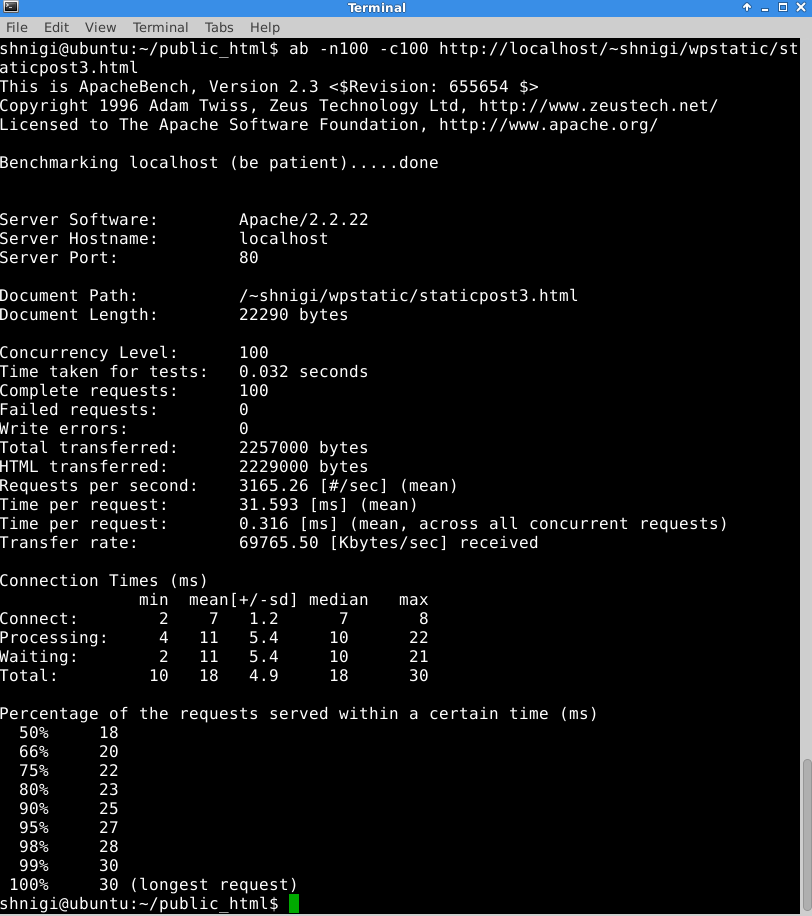
Dynamic content: Time per request 9990 and 9983 for longest request.
Static content: time per request 31 and longest request 30 Static is definitely faster. In the next post I'm going to install Varnish which is a web application accelerator. It loads the web site into ram memory and updates only once in a second which is not very much. It creates a static copy of the page to serve faster.
With AB user can check performance of any page, for example google.com. To create logfiles automatically use commands below with crontab:
ab -n 100 -c 20 http://localhost/ > benchmarklog-$(date +\%d\%m\%y).txt
ab -n 100 -c 20 http://localhost/ > /home/username/public_html/ablogs/log-$(date +\%d\%m\%y).txt
Tilaa:
Blogitekstit (Atom)